Interactive map editing
Edit points and polygons, drag geometry handles, change layers or satellite imagery and assign multiple records from the map.
05 · Spatial data
Assign objects to rooms, cabinets and storage locations. Add maps and room views when you need more spatial context.
In everyday use
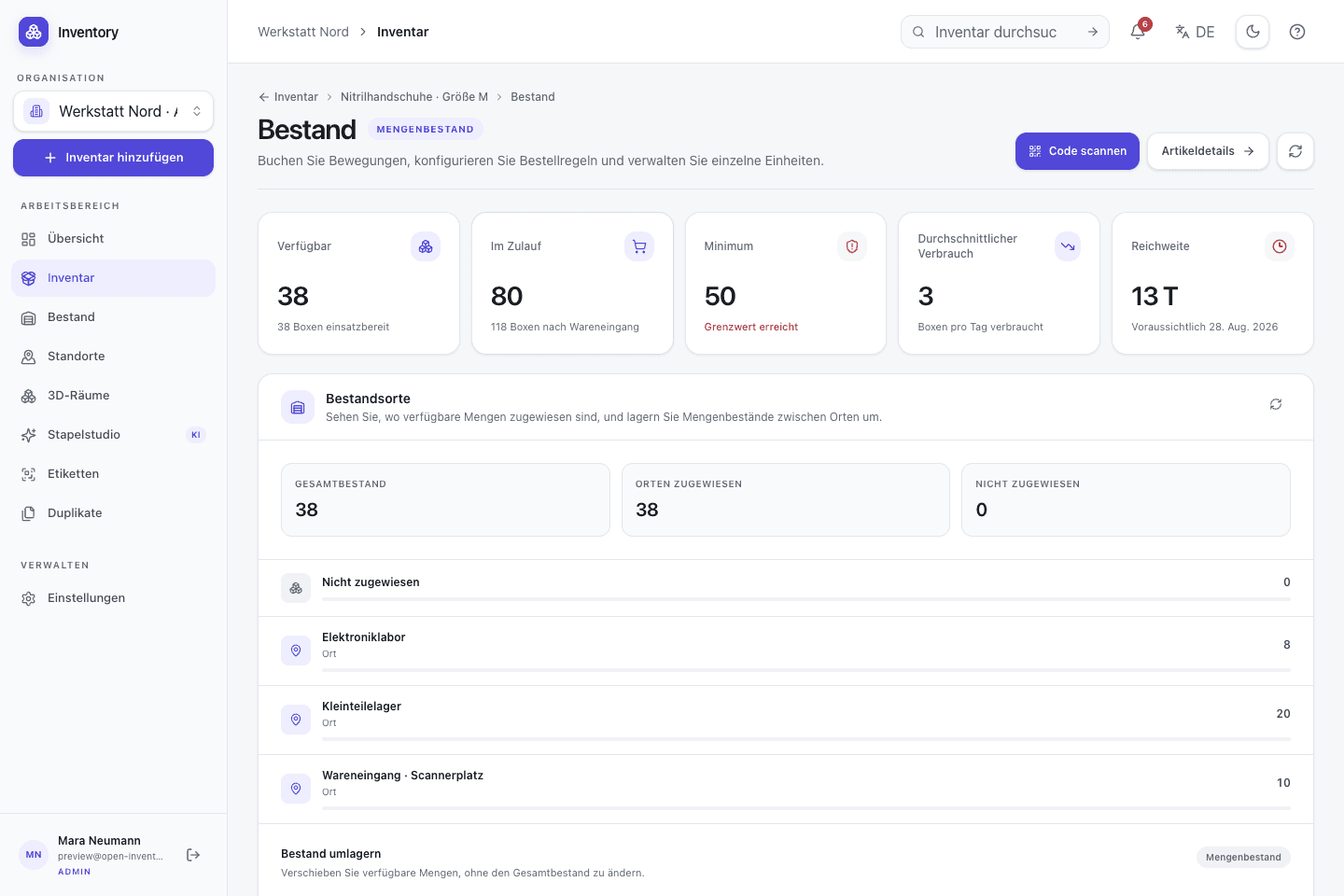
A broad location such as Warehouse is often insufficient for retrieval. Open Inventory can combine text locations, structured containers, GeoJSON and optional room scans. Simple inventories can stop at text; spatial data is added only where it resolves a real navigation problem.
Features in detail
Edit points and polygons, drag geometry handles, change layers or satellite imagery and assign multiple records from the map.
When a map point lies inside a container polygon, Open Inventory can derive a relation. A manual placement deliberately takes precedence.
A LiDAR-capable iPhone can capture rooms, floors and connected structures. This is an extension for supported hardware, not a requirement for the rest of the app.
The web viewer displays measured RoomPlan geometry, searchable inventory markers and optional photorealistic derivatives with explicit coordinate-system transforms.
Select specific room photos for optional analysis. Recognized objects and estimated positions remain reviewable suggestions before they are added to the room structure.
Step by step
Each layer is optional. A text location can be enough; map and room data extend it for larger sites and buildings.
Represent a room, cabinet, vehicle or other structured container as an inventory record.
Set a map point or draw a polygon and edit its geometry directly in the map interface.
A point inside a container polygon can produce a spatial relation. Explicit manual placement keeps precedence.
Use a compatible iPhone to capture rooms and floors, then inspect the resulting structure in the web viewer.
On site, too
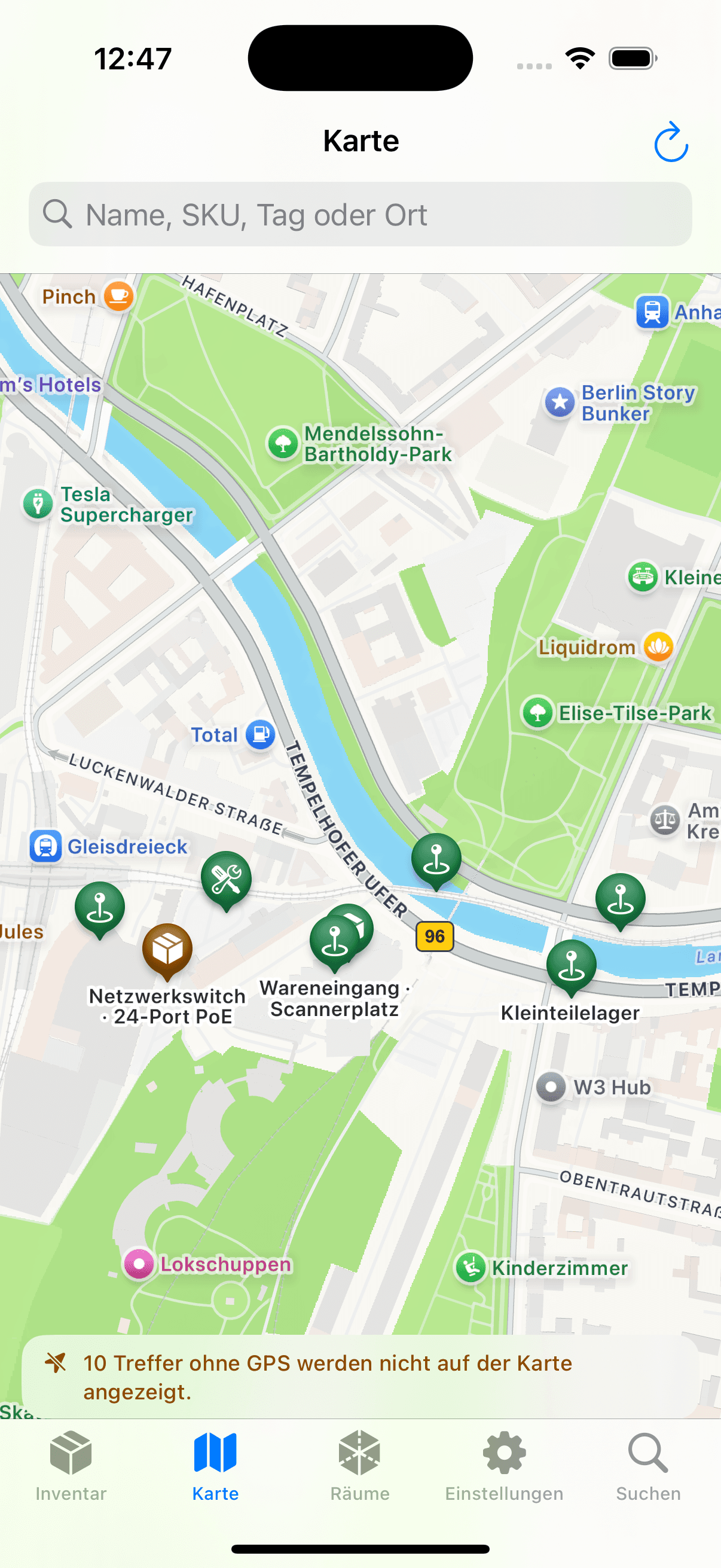
On LiDAR-capable iPhones the SwiftUI client can use RoomPlan to capture rooms, floors and connected structures. Map and normal location features do not require Pro hardware.